Production tracking has landed in Aphex! 🎉
Every morning the progress update says the task's on track. Thumbs up, green. Then a few days before it's due to finish, the supervisor tells you it'll be another week. Nothing in the record warned you, because each day's update was someone's best read on progress, rather than a measure of what actually got done.
The production numbers that would have warned you are usually in a spreadsheet or a Power BI dashboard, a week or more behind the work, with nothing linking them to the dates on the plan. So the slip shows up at the end of the task, when there's the least room to plan around it.
Production tracking closes that gap. You can now track what your crew delivers each day against the target output for each production task, so a slip shows up the day it starts. This completes the loop Aphex is built around: plan, communicate, track, and feed that back into the next plan.
But that's not all we've been up to - a few more updates are waiting for you at the end of the blog.
Let's dive into what's new at Aphex 🤩
Production Tracking
Progress updates have a new look
Progress updates now cover two things: whether a task's dates have changed and, for tasks with production assigned, whether output is on track against its target. Whether you add progress from the task details panel on web or from List View on mobile, it's one step-by-step flow instead of the separate thumbs-up and thumbs-down windows.
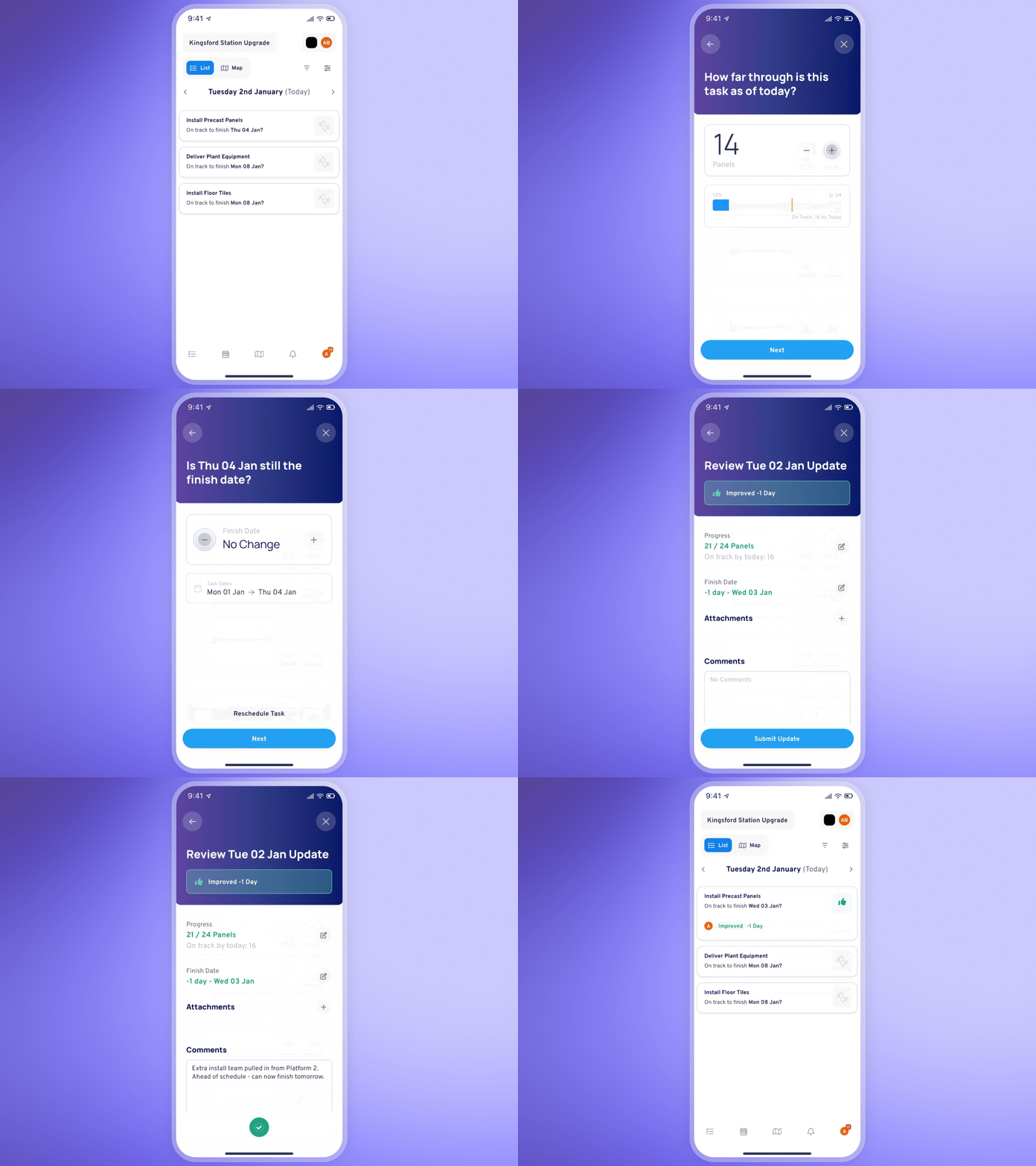
Progress updates on tasks without production assigned
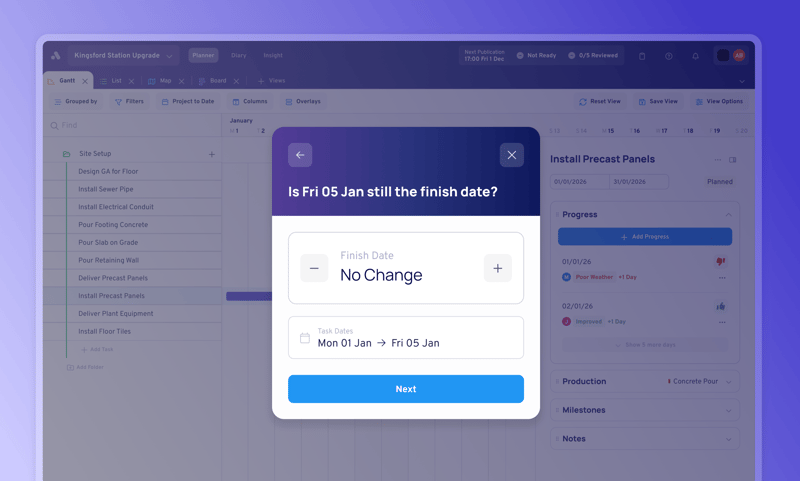
Even if you're not tracking production yet, your progress updates will look different now, though it'll ask for the same information as before.
-
Confirm whether the finish date still holds (extending, shortening or moving it if it doesn't)
-
Give a delay reason if the finish date is extended
-
Review and optionally add comments, photos or documents
Progress updates on tasks with production assigned
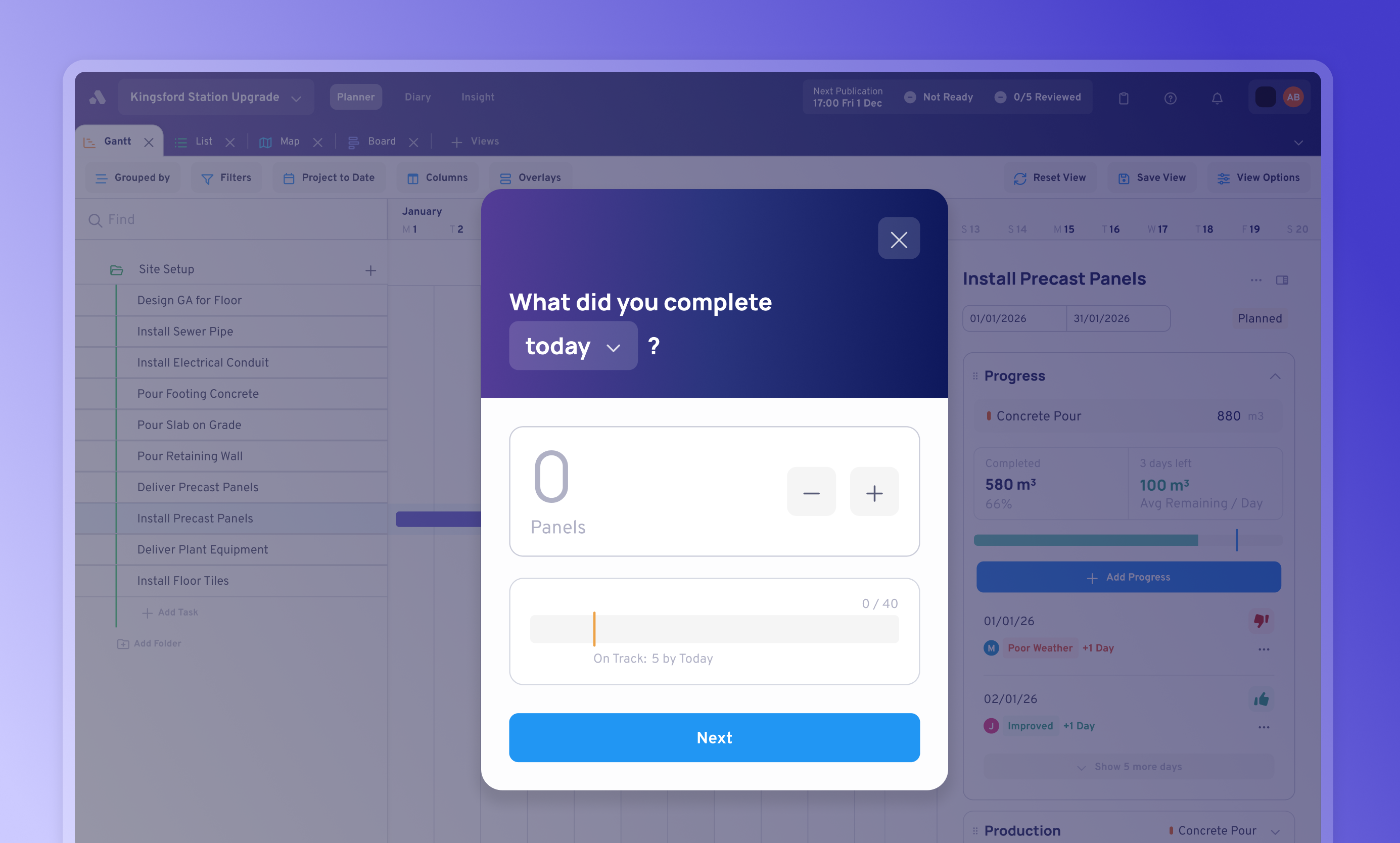
For progress updates on tasks with production assigned, there will be a couple additional steps.
-
Enter the output for today. For a unit-based measure, that's today's quantity (for example, 18 panels). For a percentage-based measure, it's the total percentage complete so far.
The progress bar shows how far through the task you are against its total (for example, 0/40). A yellow marker shows where you should be by the record date ("On Track: 5 by Today"). That's how you can tell if the task is slipping.
-
Confirm whether the finish date still holds (extending, shortening or moving it if it doesn't)
-
Give a delay reason if the finish date is extended
-
Review and optionally add comments, photos or documents
- Optionally mark the task as Done, only if the task's production reaches 100%
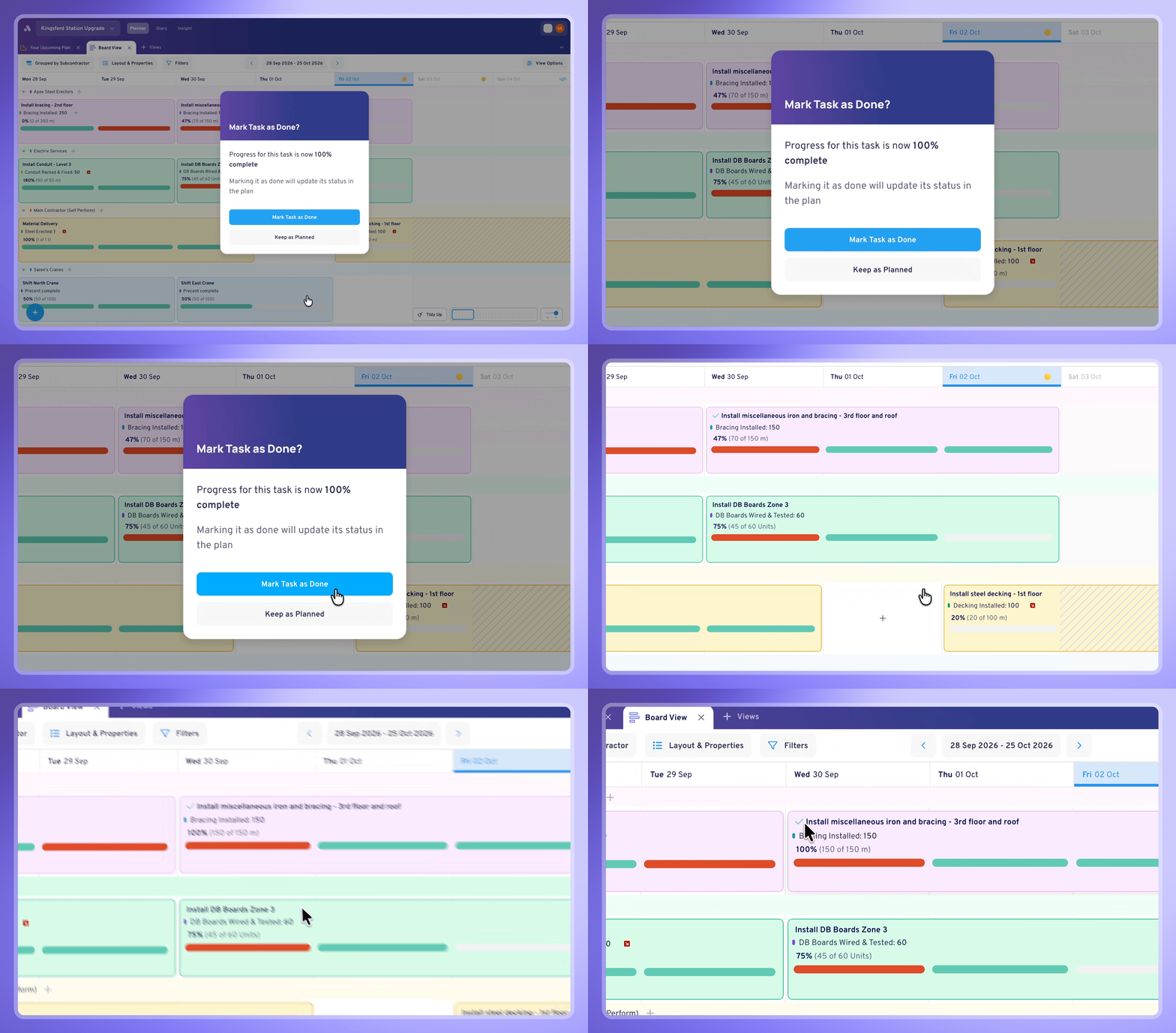
For a more detailed breakdown on adding progress to tasks, read the Progress help docs. If your project hasn't set production up yet, start with the Production Measures help doc.
Seeing progress on the plan
Once updates are coming in, they show up across the plan. The Gantt has a new progress column with a live percentage, and its task bars show each day in red or green, with a net delay tag at the end.
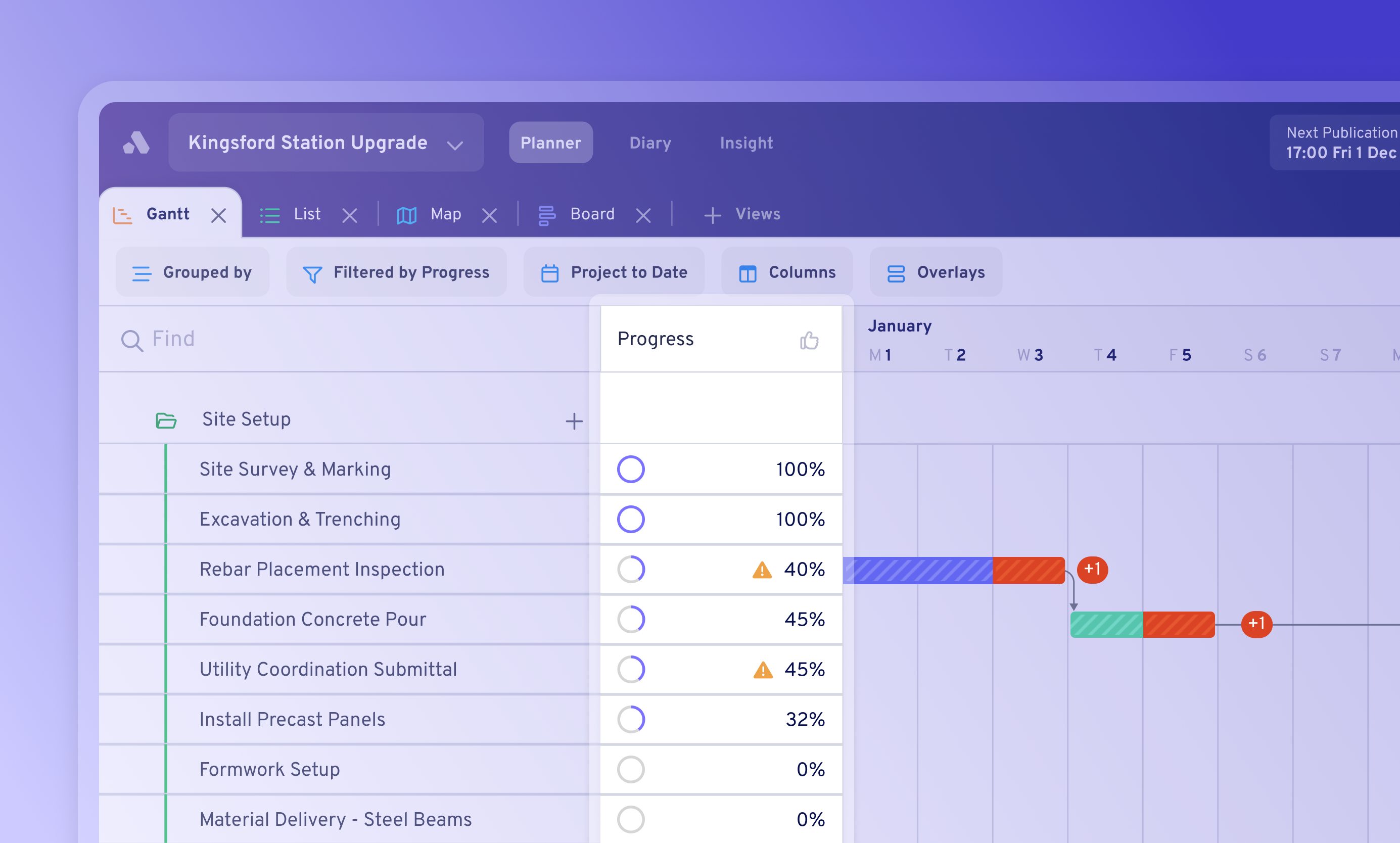
On Board View you can toggle on the Progress property and a red or green pill appears on each day a task has a progress update. List shows coloured thumbs on each task card.
The logic behind the red and green labelling:
- Green: an improvement was recorded that day, or nothing changed and the task is on pace overall.
- Red: a delay was recorded that day, or nothing changed and the task is behind pace overall. If a delay and an improvement are both recorded on the same day, the day shows red.
Red and green only appear on days with a progress update. Each individual update also gets its own label, based on whether that day's output reached its target and whether the finish date moved. The full rule breakdown is in the help docs here.
Identifying tasks At Risk
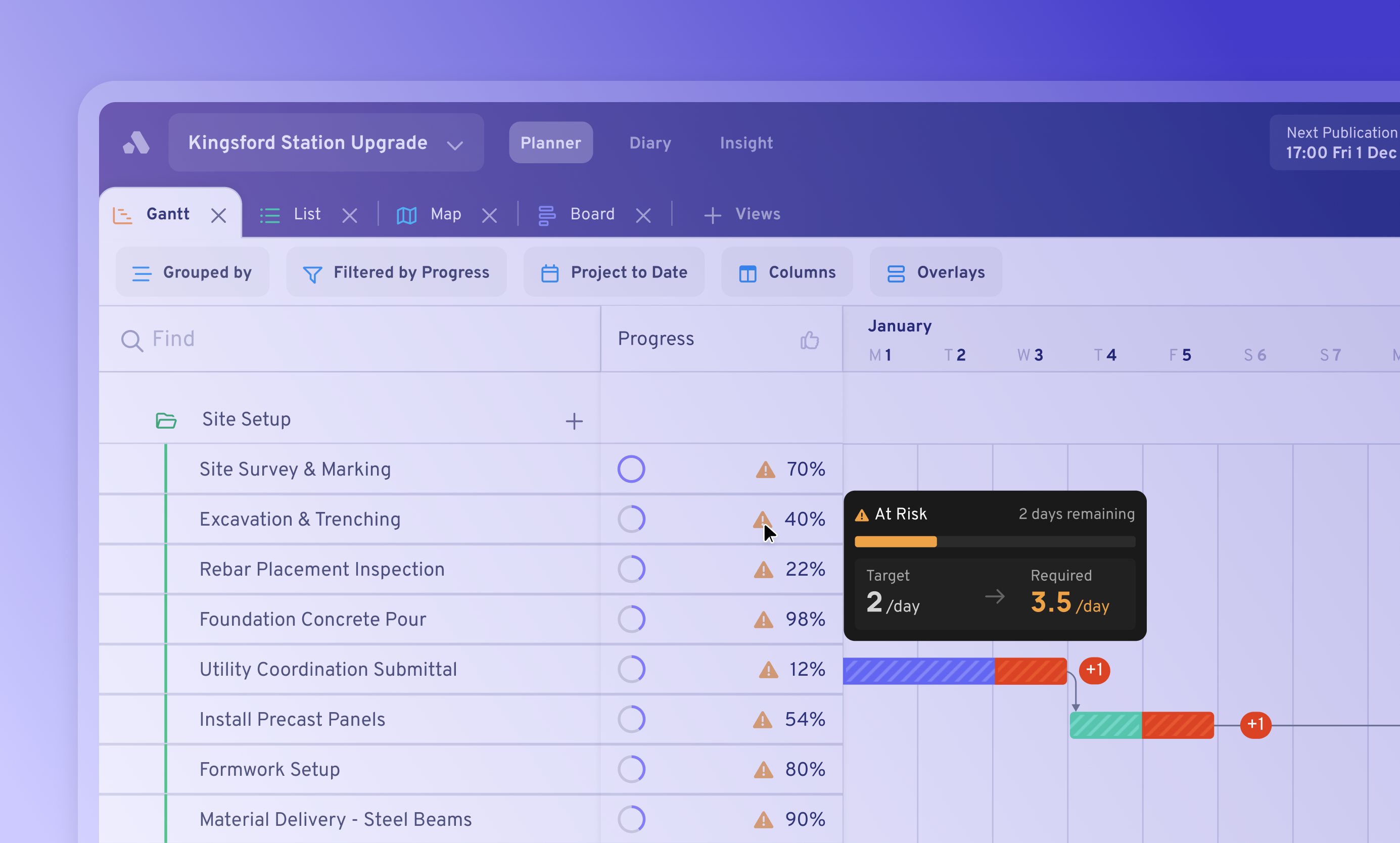
A task is At Risk when the output still to deliver, spread over the days left, needs more each day than the crew has been achieving. In other words, at the current pace it'll finish late. Only tasks with production assigned can be flagged At Risk.
To see every At Risk task on the plan:
- Click Filter.
- Set the filter to Progress is At Risk.
- Hover over the At Risk icon on any task for a summary of why it was flagged.
This view is for project and construction managers. You don't have to open each task and ask whether it's okay. The filter gives you a short list of the tasks that are behind pace, and you can take that list into the daily coordination meeting. The same Progress filter can also show tasks that are Not Started, In Progress or Complete. Tasks with no progress updates won't appear under any of these options.
It works in the other direction too. If a crew's output is consistently ahead of its target, you'll see it on the task, and you can pull the schedule forward.
Plan, communicate, track, back to plan
Production tracking completes the loop Aphex is built around: plan output, communicate it to the crew, track what's actually delivered, and feed that back into the next plan. Engineers, site teams and project managers are working from the same numbers on the same tasks, so you'll see output drop on the day it starts.
Read the Production Measures help doc to set up production measures.
Also new ✨
On top of production tracking, we have a few more exciting updates that have recently landed in Aphex:
Business Units 📁
If your organisation runs several regions or divisions, until now seat and user numbers were only visible project by project. Super Admins and System Admins can now group projects into named Business Units from Admin App → Projects. You'll see total users, Planner seats and Diary seats for each unit as well as for each project, and new projects can be created or transferred straight into a unit.
Idle seats ⚠️
Until now, "last active" was the only way to judge whether a seat was being used, and it doesn't tell you whether any project actually needs that person. From Admin App → Organisation Users, users now shows as Active, Idle or Not Assigned. An Idle seat is paid for but isn't being used on any active project. Click the Idle count at the top of the page to filter straight to those people.
Diary resource table 🏗️
To find out which plant was on site last month, you used to have to open diary entries one at a time. The new Resources tab in Diary (below Recap) brings every labour and plant record from across a project's diaries into one table. You can filter it by type, subcontractor, diary or date range; add columns such as hours, cost code and tasks; click through to the original entry; and export what you see to CSV.
Diary routines and auto-close 📆
Admins can now set a Diary routine using up to four rotating weekly patterns, or link it to the project calendar. There's also a new auto-close setting. When it's on, a completed diary moves to Reviewed seven days after its summary is generated, which helps on sites without a formal reviewer. A diary won't auto-close if a reviewer is assigned or it's awaiting review.
Bug fixes and improvements
Alongside these updates, we've shipped a round of bug fixes and smaller improvements, you can head to the changelog for the full list.
That's everything for this release. These features were all shaped by your feedback, requests and ideas - thank you. If you've got thoughts on what we should build next, you can view the roadmap and request features here.
Until next time,
Team Aphex 💜