Product
What's New in Aphex: September 2022
Very exciting news this month! We've released our ArcGIS integration into limited beta.
Whether it's exporting map screenshots to mark up before the briefing, or checking task durations against a target rate that lives in a spreadsheet, this release closes gaps we know you've been planning around.
Production Measures put target rates on the Gantt where durations get set. Map Markups turn the map into a briefing surface you can draw on. And for French-speaking teams, Aphex now speaks your language.
Here's the breakdown:
Most short-term plans are built without a production reference point. An engineer sets a task duration based on experience or what the master schedule implies, but there's rarely a way to check whether that duration is consistent with what the project was priced on. Production Measures close this gap by putting the target rate in front of the engineer at the moment they're scheduling.
Here's how it works:
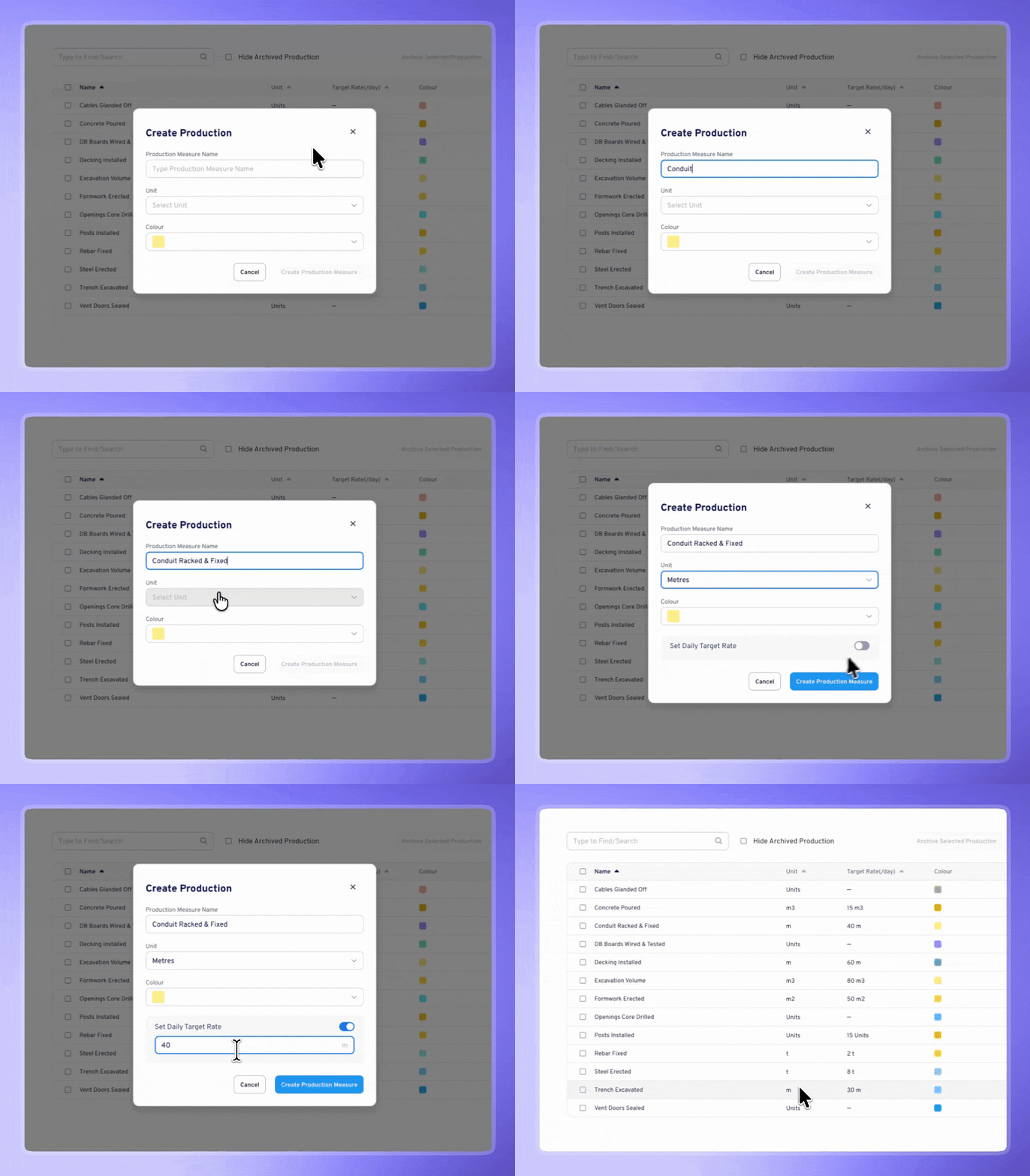
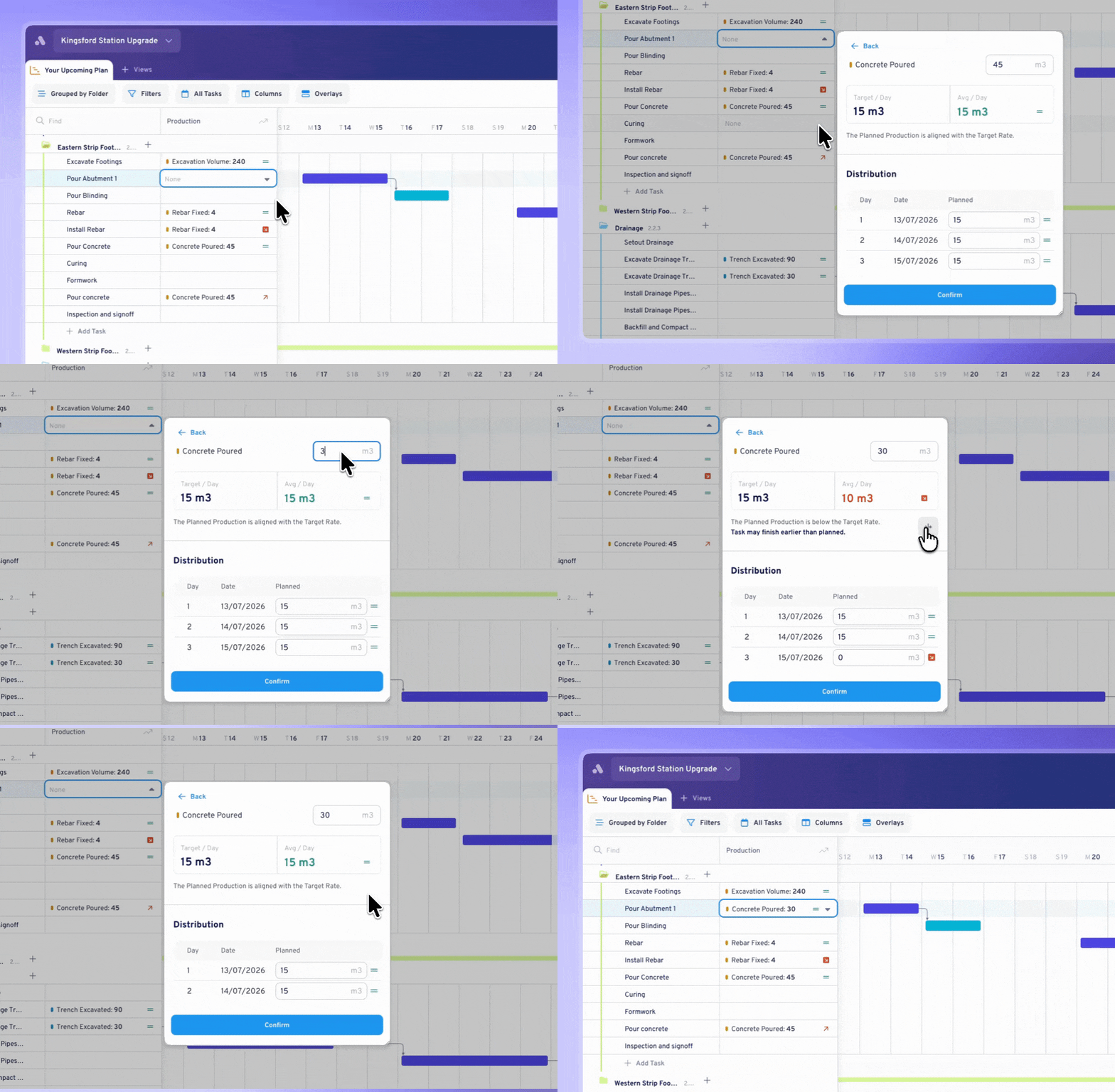
You can set the production measure from Gantt, the Task Panel, or via Edit Properties on Gantt, Map, Board and List. The Align Task Duration button extends or shortens the task so its daily average lands on target.
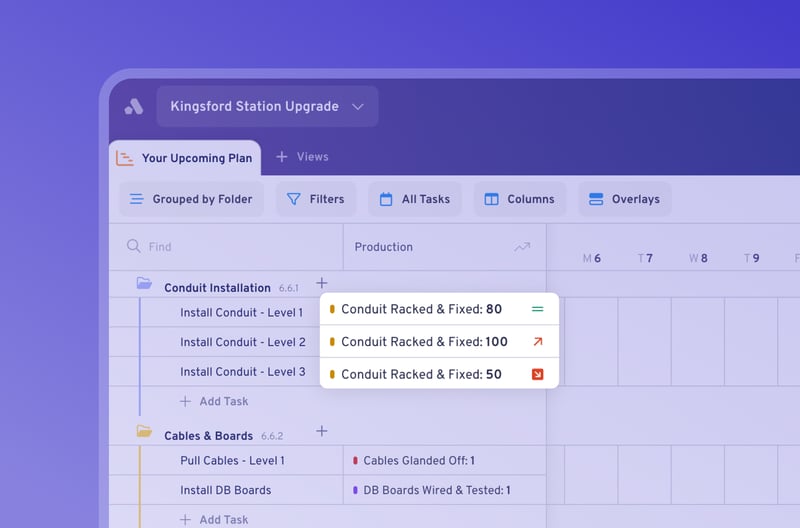
A new Production column shows each task's measure and quantity, with an icon to indicate if the rate is below, above or at the set target.
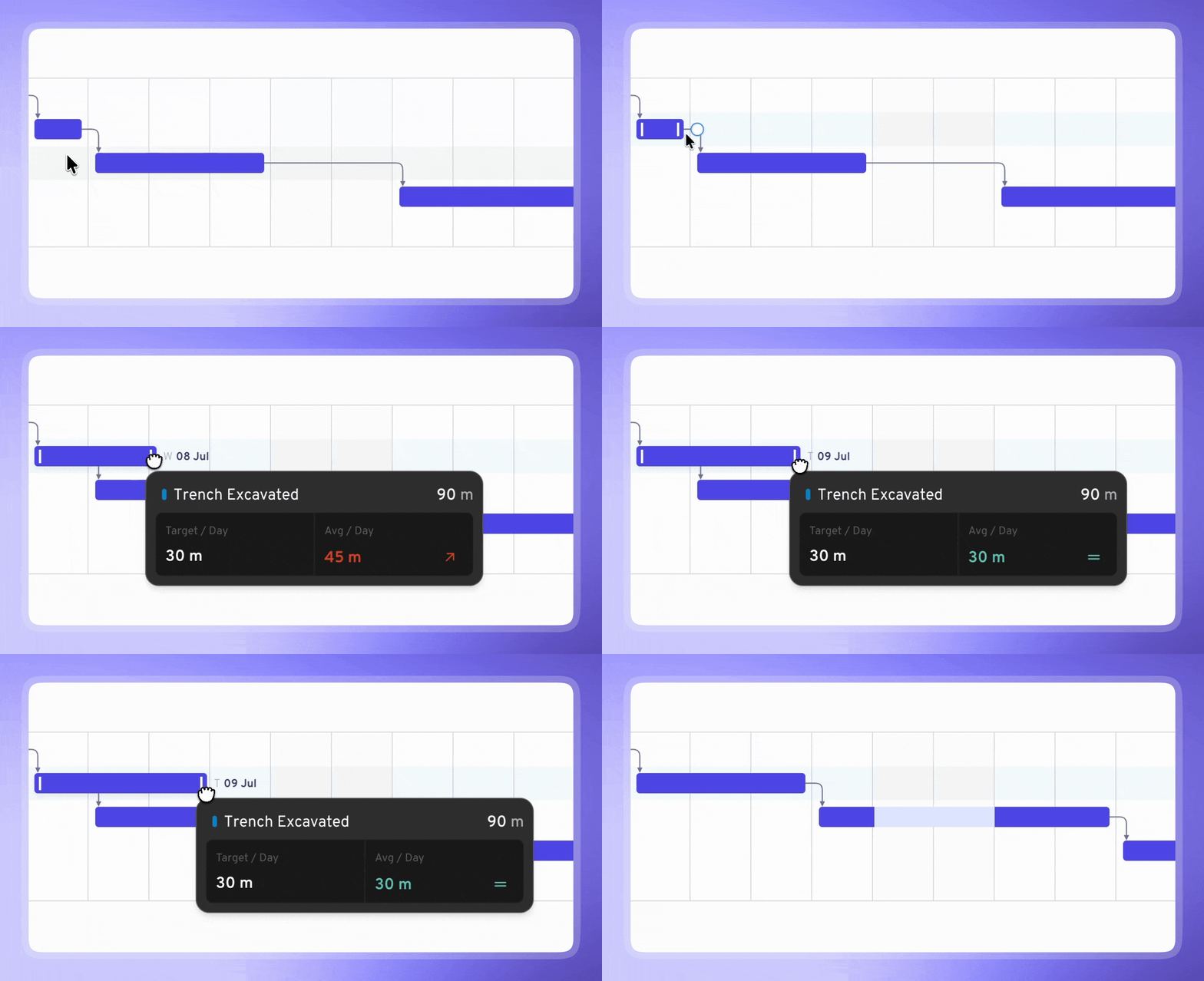
Once a task has a production measure assigned, dragging its bar shows a live tooltip with the task's daily production rate, updating as you stretch or shrink it, so you can see the moment it hits target.
This is Phase 1 of Production Measures. Next comes daily production recording, reporting what was built against what was planned, and turning progress updates from a thumbs up/down into something grounded in real output.

Until now, annotating the map meant working around Aphex, with fake tasks that polluted the schedule, or exported screenshots marked up in PDFs that drifted out of date. Now, Markups give you a whiteboard on top of your plan to draw work areas, pedestrian and haul routes with icons and notes directly on the live map. All completely separate from your scheduled work.
Here's how Map Markups work:
Create, rename, duplicate and delete named layers from the Layer panel in Map View. A "Site Logistics" layer on for the briefing, off for the lookahead; duplicate it for next cycle with everything intact.
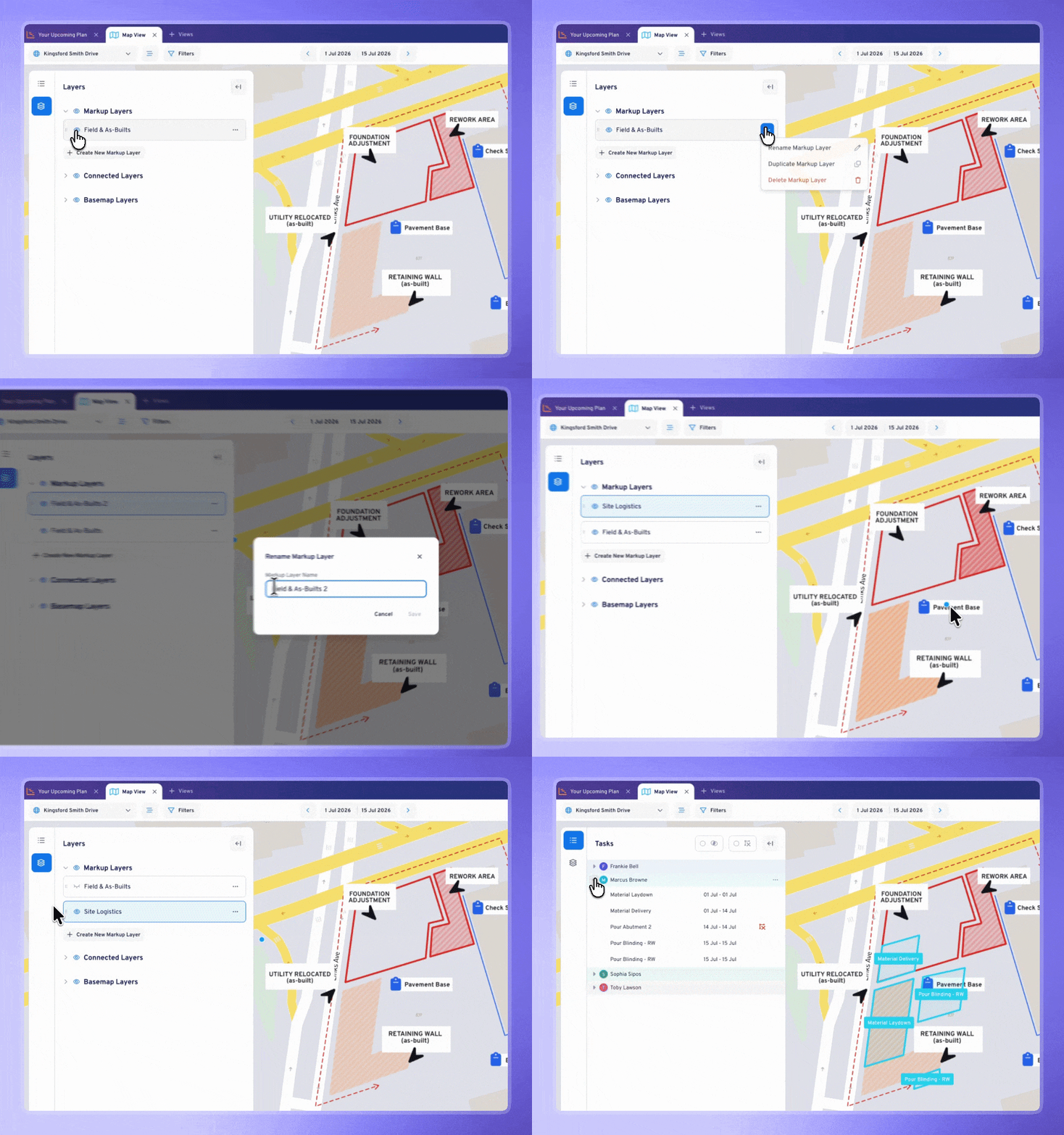
The Markup FAB includes Rectangle, Ellipse, Polygon, Arrow, Text and Icons, with full styling: fills, borders, line weights, colours and text formatting. Copy/paste objects, move them between layers, and control z-order.
-2.gif?width=1068&height=720&name=Creating%20Markup%20(27)-2.gif)
Work areas always render above markups, so the plan stays readable. You can hide markup layers at any time to quieten the noise.
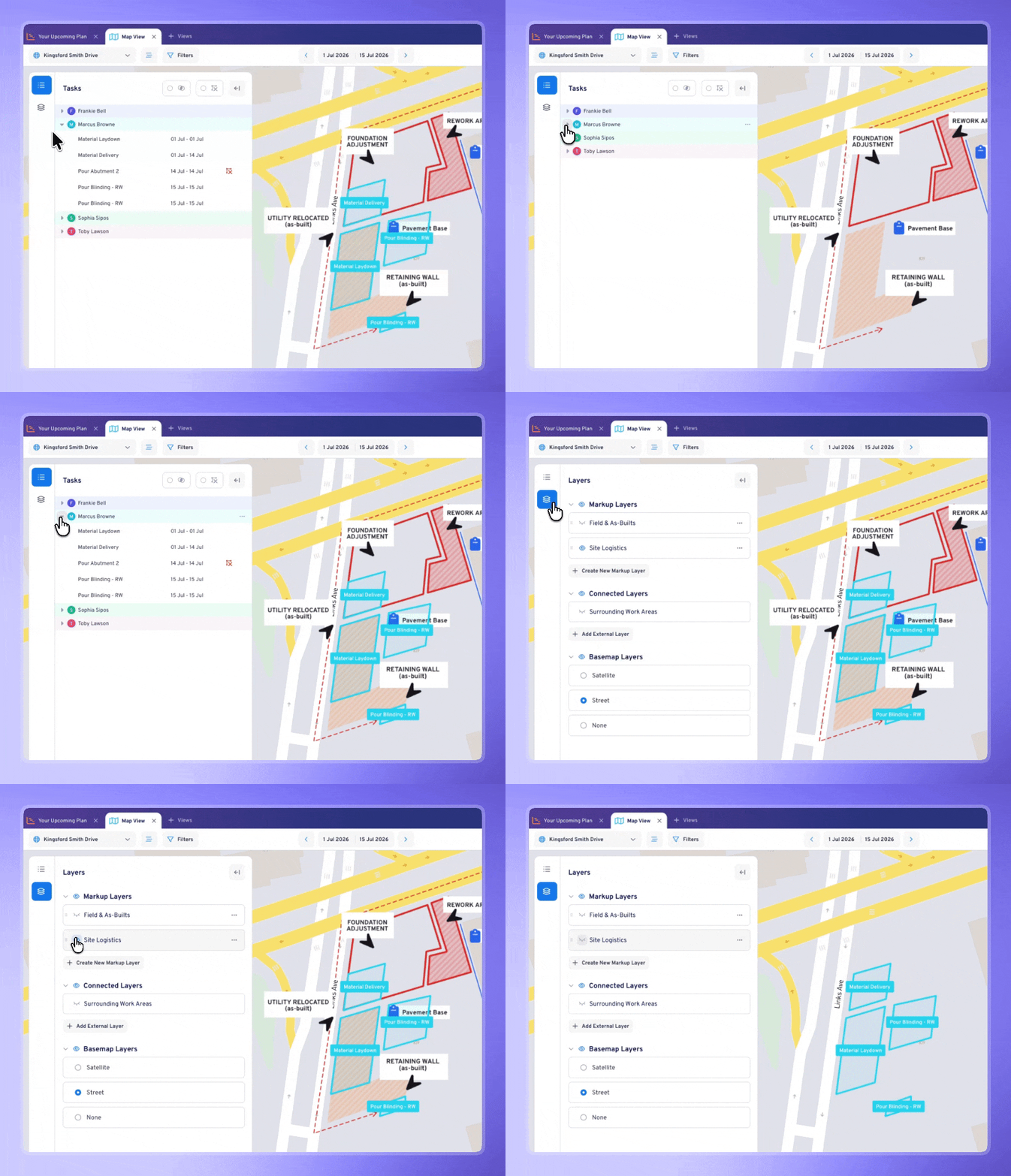
Visible markups appear in PDF prints, and publishing captures a read-only snapshot, so last Tuesday's briefing map stays intact after the layers move on.
.jpg?width=2526&height=1668&name=Printing%20Markups%20from%20Figma%20(2).jpg)
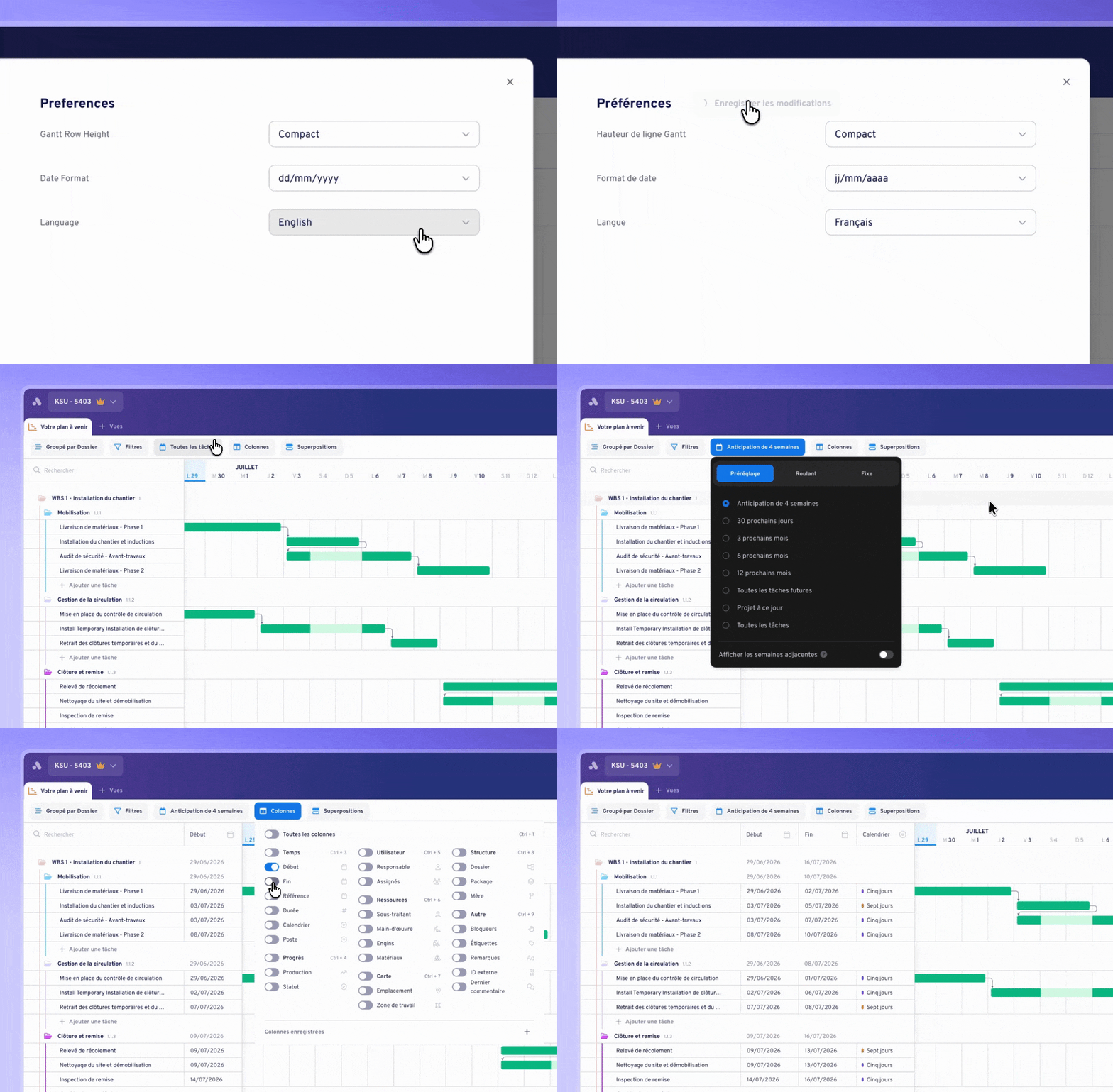
Aphex is now available in French, the first non-English language. Every Aphex-owned surface displays in your chosen language: navigation, labels, settings, tooltips, Planner views. Anything you've written (task names, comments, notes) stays exactly as entered, never translated.
Alongside the big three, we've shipped a round of bug fixes and smaller improvements, you can head to the changelog for the full list.
That's everything for this release. These features were all shaped by your feedback, requests and ideas, thank you. If you've got thoughts on what we should build next, you can view the roadmap and request features here.
Until next time,
Team Aphex 💜
Very exciting news this month! We've released our ArcGIS integration into limited beta.
This month has been all about making the Project Routine more inclusive, regardless of whether you own work in the lookahead.
Aphex Mobile: Open Beta, MetroMaps & Nearmap WMTS Integration, Unlink Multiple Tasks at Once